What an integration does: before, during and after the conversation
Most integrations work at three moments. You switch each moment on or off per integration.
- Before the conversation: Twilper recognises the caller or visitor (for example in your CRM or web shop) and gives the AI a short, safe summary.
- During the conversation: the AI may look something up or record it, such as an order status, an appointment or a new contact. It only writes after a clear "yes" from the customer.
- After the conversation: Twilper writes the summary back to your system or notifies your team.
The Integrations page
Step 1: Open Integrations
Sign in to chat.twilper.com as owner or admin and choose "Integrations" under "Manage" in the left menu. Team members without admin rights don't see this page.
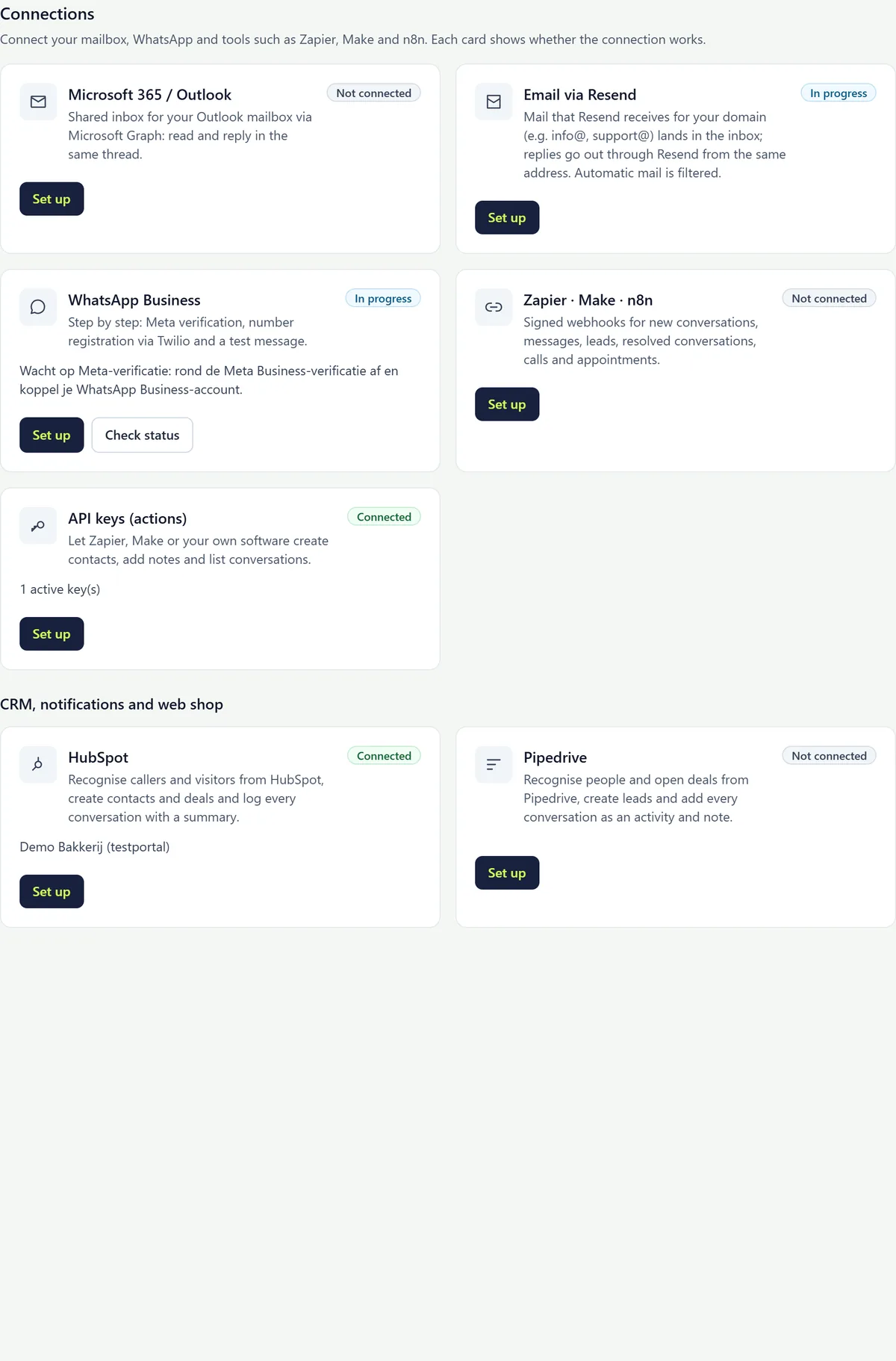
Step 2: Read the status on the card
"Not connected" means ready to set up. "In progress": you are halfway or waiting for a third party. "Connected": the integration works. "Not available yet": this integration is still switched off for your workspace; there is nothing you need to do.
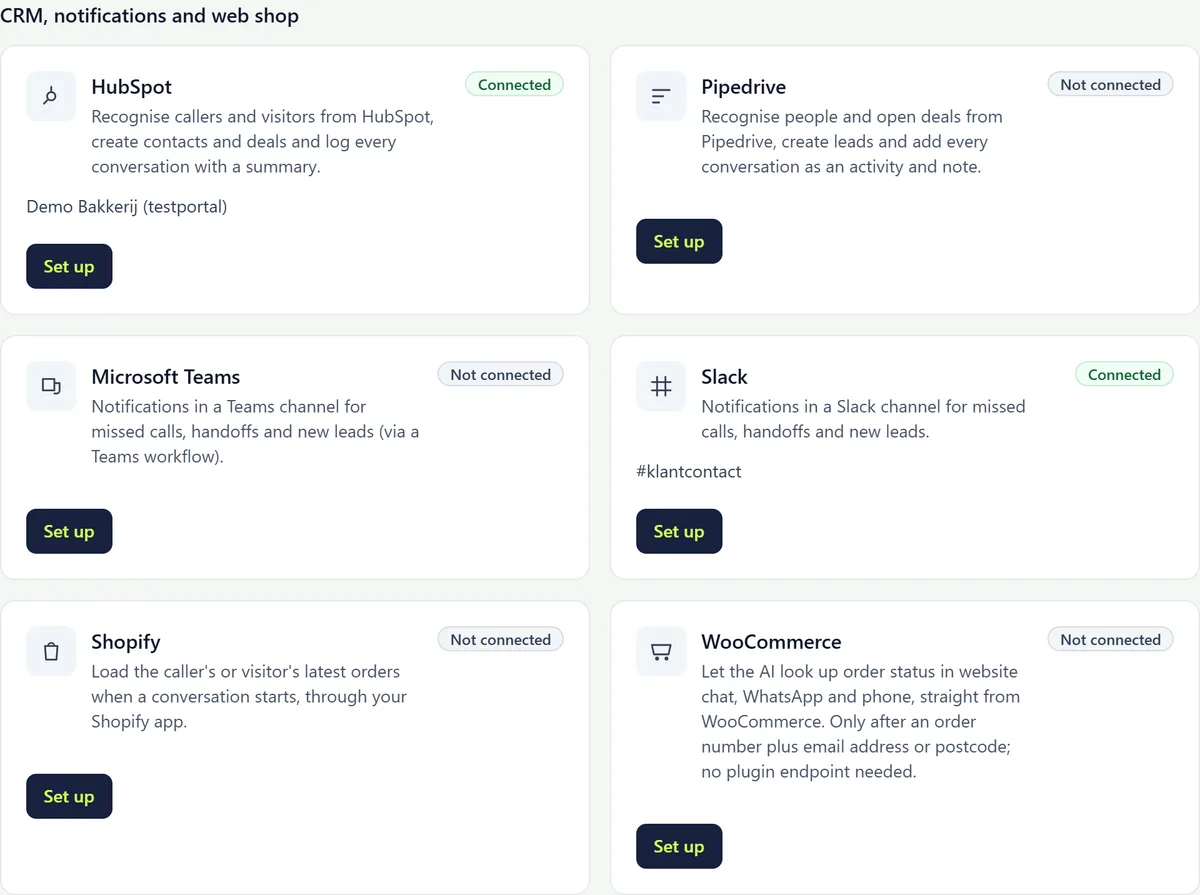
Step 3: CRM, notifications and web shop
Below the main cards is the block "CRM, notifications and web shop" with HubSpot, Pipedrive, Microsoft Teams, Slack, Shopify and WooCommerce.
What you need
- A Twilper workspace in which you are owner or admin.
- A signed data processing agreement (DPA). Without it, integrations that process customer data stay off.
- An account with the service you connect, with rights to create an app, key or webhook.
- Some integrations are enabled per workspace (beta). You can tell by "Not available yet" on the card.
Rules that apply to every integration
- The AI only gets data about the person in the conversation, never amounts, and never says "I looked you up".
- An email address typed into the website chat is not verified. The AI then gets at most "probably an existing customer" with a first name, and no orders, deals or tickets.
- A caller's phone number counts as verified, but the AI only gives details after confirmation, for example with an order number.
- Nothing is written without a clear "yes" from the customer.
- Errors go into a log per integration, without secrets or conversation content. The latest error shows on the card.
Testing
- Many cards have a "Test" or "Check status" button. It sends a safe test message or only reads the status.
- The CRM and notification wizards have "Test connection" with a test number or test email address.
- Then try a real conversation through your own website or phone.
Common problems
- "Not available yet": the integration is still off for your workspace. Request access on the integration's page in the directory.
- You can't see the Integrations page: you are not an owner or admin. Ask the workspace owner.
- A card says "Reconnect": access expired or was revoked. Click "Set up" and sign in to the service again.
Good to know
- Start with one integration and test it with a real conversation before you switch on the next.
- Missing an integration? Check "Coming soon", or use webhooks or the bot link until then.