What it does
- After the conversation or on an event: a card in the chosen channel, with contact details and summary if you switch that on.
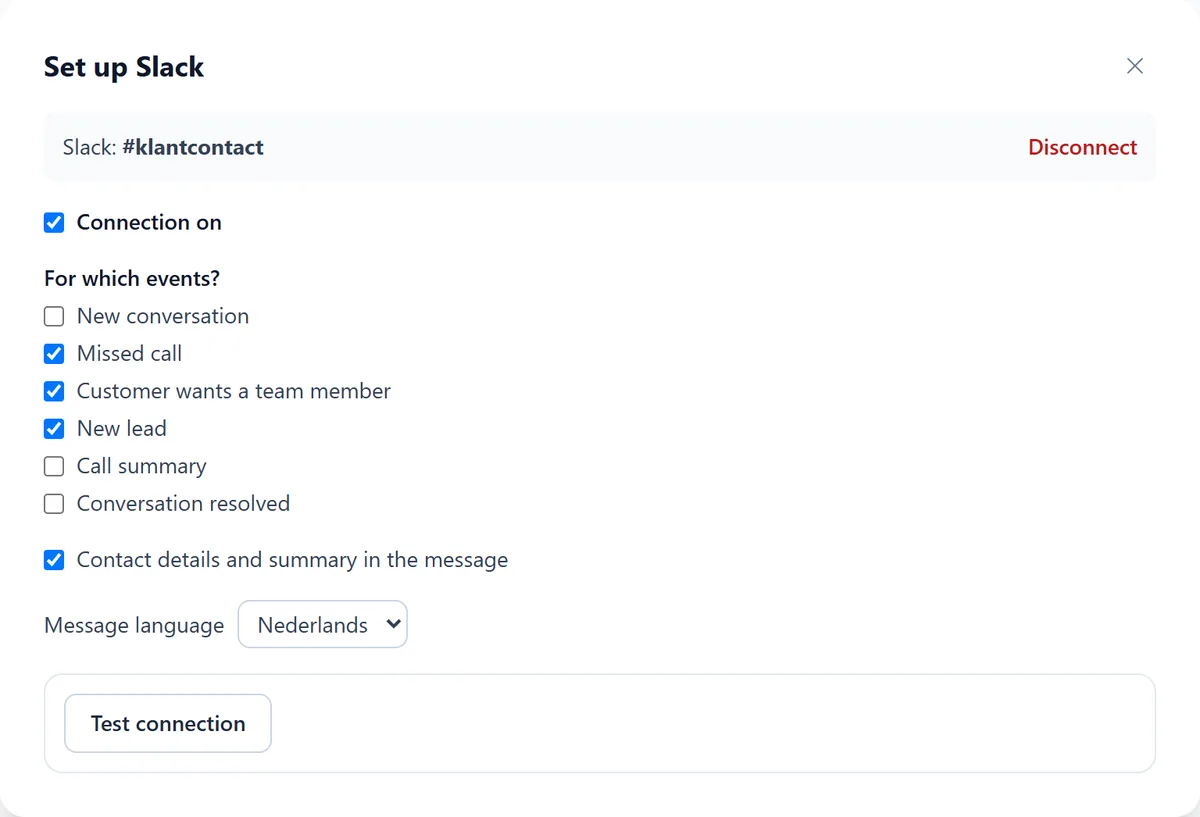
- Events: "New conversation", "Missed call", "Customer wants a team member", "New lead", "Call summary" and "Conversation resolved".
- Before and during the conversation this integration does nothing: it only notifies.
What you need
- Slack: a workspace where you may add an Incoming Webhook. The URL starts with https://hooks.slack.com/services/.
- Teams: a channel where you may create a workflow. Old Office 365 connector URLs (webhook.office.com) no longer work.
Set up Slack
Step 1: Create a webhook in Slack
In Slack, create an Incoming Webhook for the channel that should receive the notifications, and copy the URL.
Step 2: Paste the URL in Twilper
Go to "Integrations", click "Set up" on Slack, paste the URL and save.
Step 3: Choose the events
Switch on "Connection on" and choose under "For which events?" what you want to see. "Contact details and summary in the message" puts details in the notification; choose the language of the messages next to it.
Set up Microsoft Teams
Step 1: Create a workflow in Teams
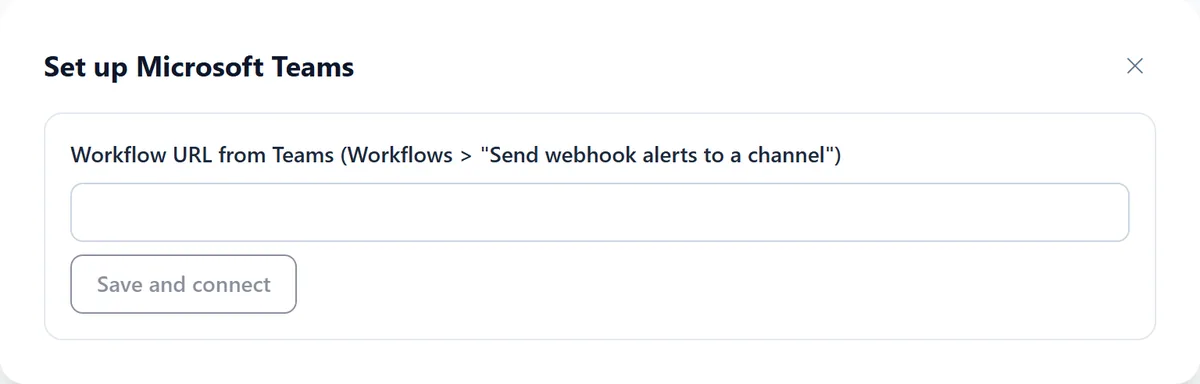
Open the channel in Teams, choose "Workflows" and the template "Send webhook alerts to a channel". Copy the URL Teams gives you.
Step 2: Paste the URL in Twilper
Click "Set up" on Microsoft Teams, paste the URL into the Teams workflow URL field and click "Save and connect". Then choose the events, as for Slack.
Rules and settings
- Switch off "Contact details and summary in the message" if many people read the channel; Twilper then only says that something happened.
- Only Teams URLs from Microsoft Workflows and Power Automate are accepted.
- Failed notifications are resent automatically.
Testing
- Click "Test connection" in the wizard. A test message appears in the channel.
Common problems
- Teams rejects the URL: use a Workflows URL, not an old connector URL from webhook.office.com.
- No messages: check that "Connection on" is switched on and that events are ticked.
- The webhook was deleted in Slack or Teams: create a new one and paste it again.
Good to know
- Want notifications in another system? Use webhooks with Zapier, Make or n8n.