What it does
- Before the conversation: a notification on your phone or computer as soon as a customer writes or calls.
- During the conversation: you reply from the app, just like in the dashboard.
- Notifications contain no message content.
What you need
- Android: Google Play.
- iPhone or iPad: iOS 16.4 or later and Safari.
- Desktop: Chrome, Edge or Safari on the Mac.
Android
Open "App & notifications" in the menu and tap "Get it on Google Play", or search Google Play for Twilper. Sign in and allow notifications.
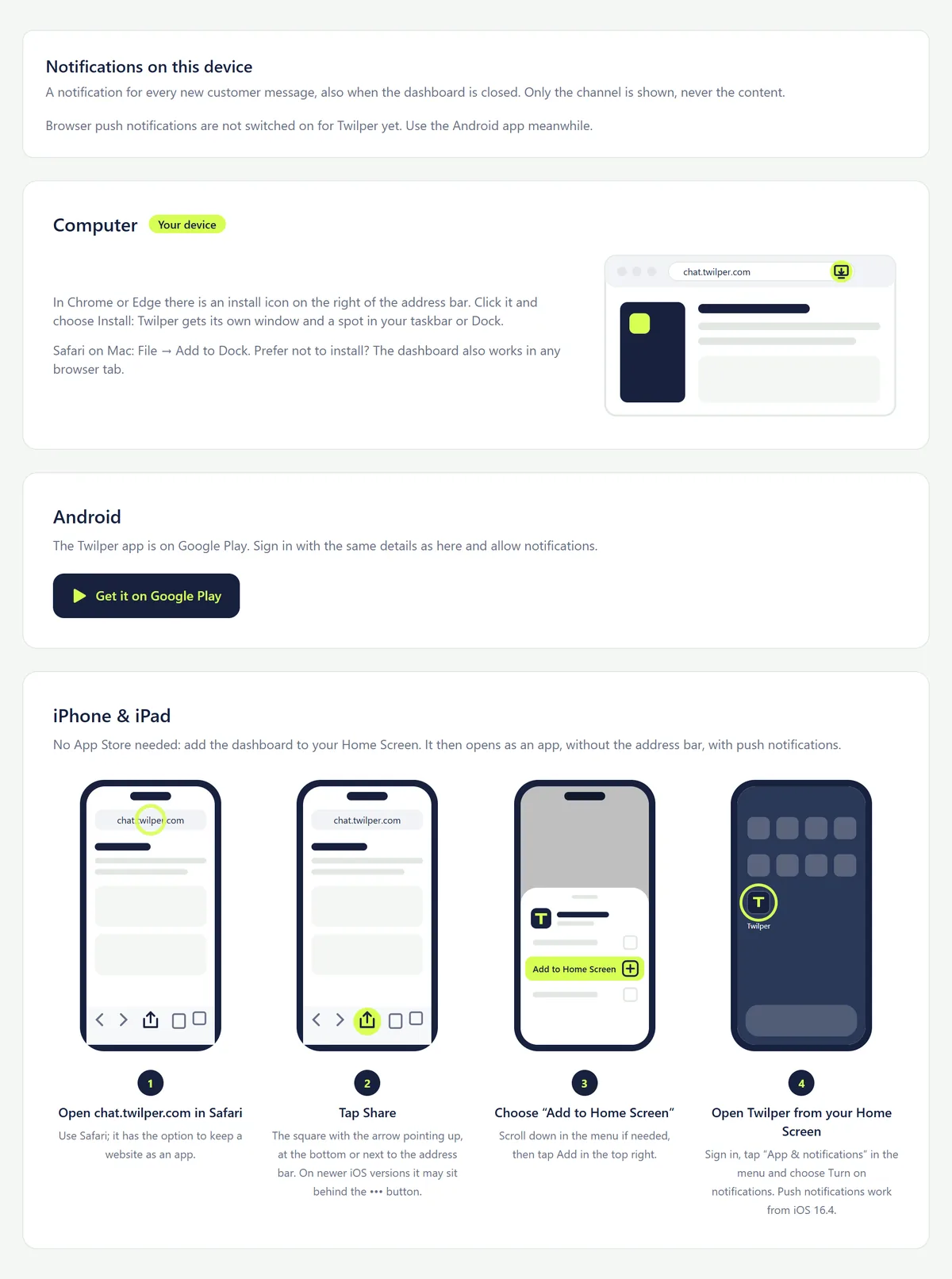
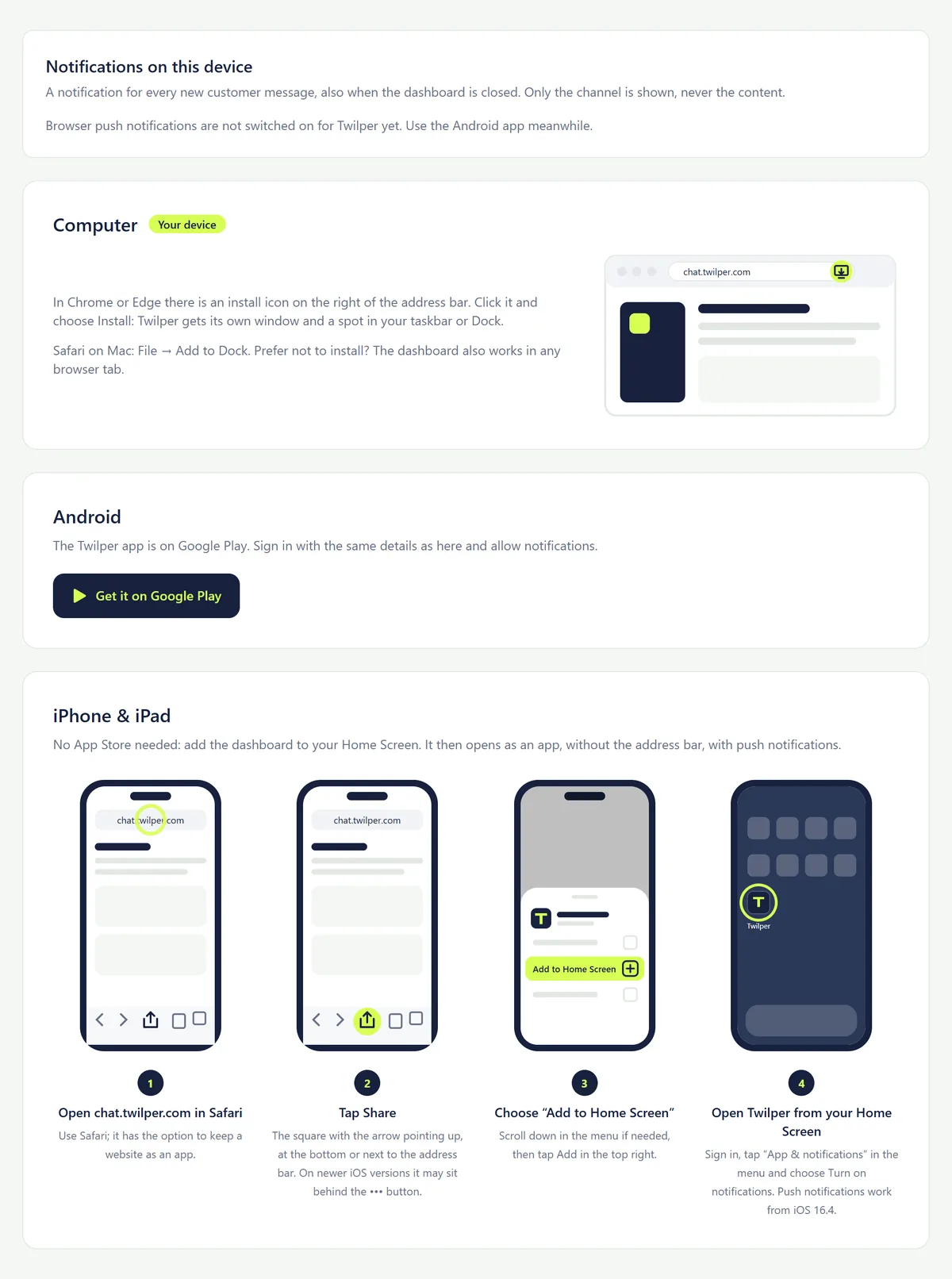
iPhone and iPad
Step 1: Open in Safari
Open chat.twilper.com in Safari (not in another browser).
Step 2: Tap Share
Tap the square with the up arrow. On newer iOS it may sit behind •••.
Step 3: Add to Home Screen
Choose "Add to Home Screen" and tap Add.
Step 4: Open the app and switch on notifications
Open Twilper from your home screen, sign in, open "App & notifications" and tap "Turn on notifications".
Set up notifications
Step 1: Open App & notifications
Choose "App & notifications" at the bottom of the menu. Under "Notifications on this device" switch notifications on and choose what you want to be notified about.
Step 2: Set your preferences
Optionally choose only conversations assigned to you (or to nobody) and quiet hours. Settings apply per device.
Rules and settings
- On desktop, install through the install icon on the right of the address bar in Chrome or Edge, or in Safari on the Mac through File > Add to Dock.
- After an update you see a bar saying there is a new version of Twilper; click Refresh.
Testing
- Send a chat message through your own website while the app is closed. You get a notification within seconds.
Common problems
- Notifications are blocked for this site: allow notifications in your browser or phone settings.
- No notification on iPhone: notifications only work in the app on your home screen, not in Safari itself.
- This browser doesn't support push notifications: use Chrome, Edge or Safari, or the Android app.
Good to know
- Also want notifications in Slack or Teams? See the guide Notifications in Slack or Microsoft Teams.