What it does
- Before the conversation: Twilper checks your opening hours and plays a phone menu if needed.
- During the conversation: the call goes to your call group, queue, AI receptionist or forwarding; outside opening hours to the AI assistant or voicemail.
- After the conversation: the call, any recording and the summary are in the shared inbox.
What you need
- A plan with phone service assigned. Until then you can already prepare the call route.
- No Twilio account: Twilper creates the technical connection for you.
- For a new number in some countries: a registration with the regulator with an address in the number's region.
Set up the line
Step 1: Check the progress
Go to "Channels" > "Phone". "Phone setup progress" shows four steps: phone service for this plan, connection prepared, number connected and calling enabled.

Step 2: Choose or create a line
Choose your line under "Phone lines" or click the button to prepare a new line.

Step 3: Choose the call handling
Under "Call handling" choose between ringing a call group together (up to 10 numbers), a queue, the AI receptionist, a phone menu or forwarding. Fill in your "Opening hours", for example Mon-Fri 09:00-17:00; Sat 10:00-13:00, and choose what happens "Outside opening hours".
Step 4: Voices and announcements
Choose the line's default language, the voice of the menu and the voice of the AI assistant, and optionally a voice per language. Click "Save routing".
Step 5: Check the preview
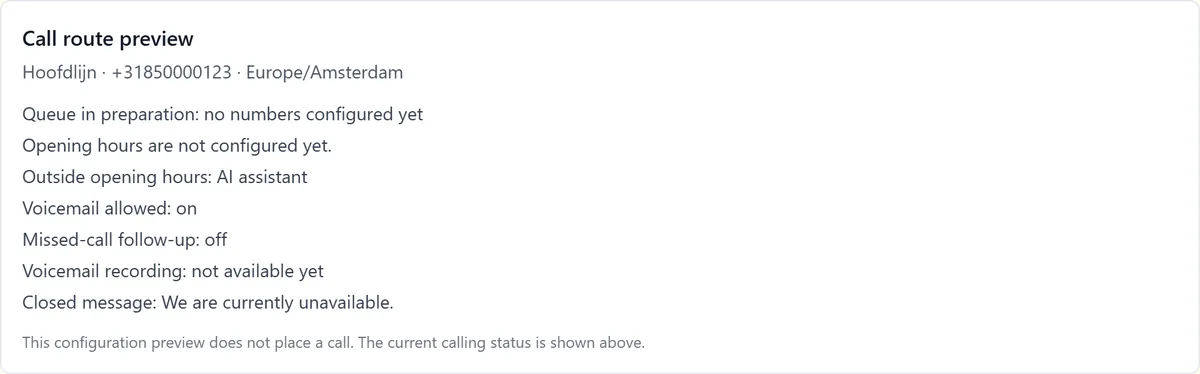
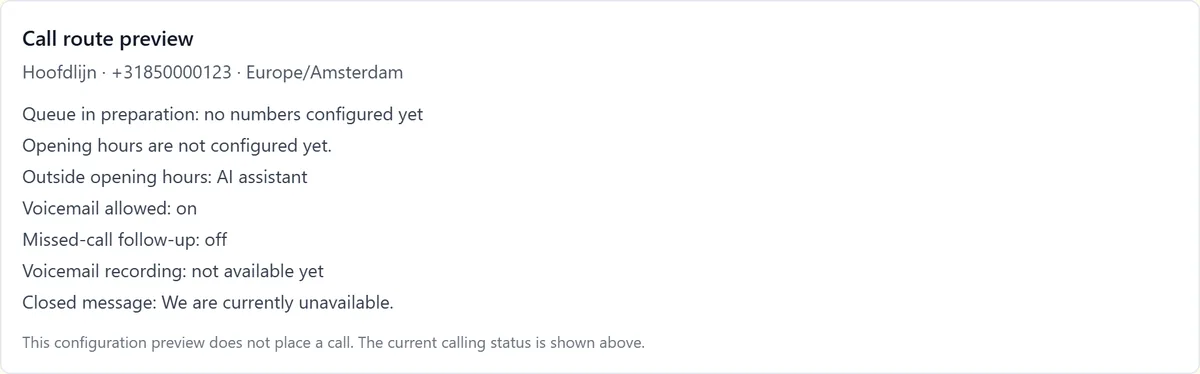
"Call route preview" describes in plain words what a caller experiences. This preview doesn't call anyone.


Keep your existing number
Step 1: Choose how
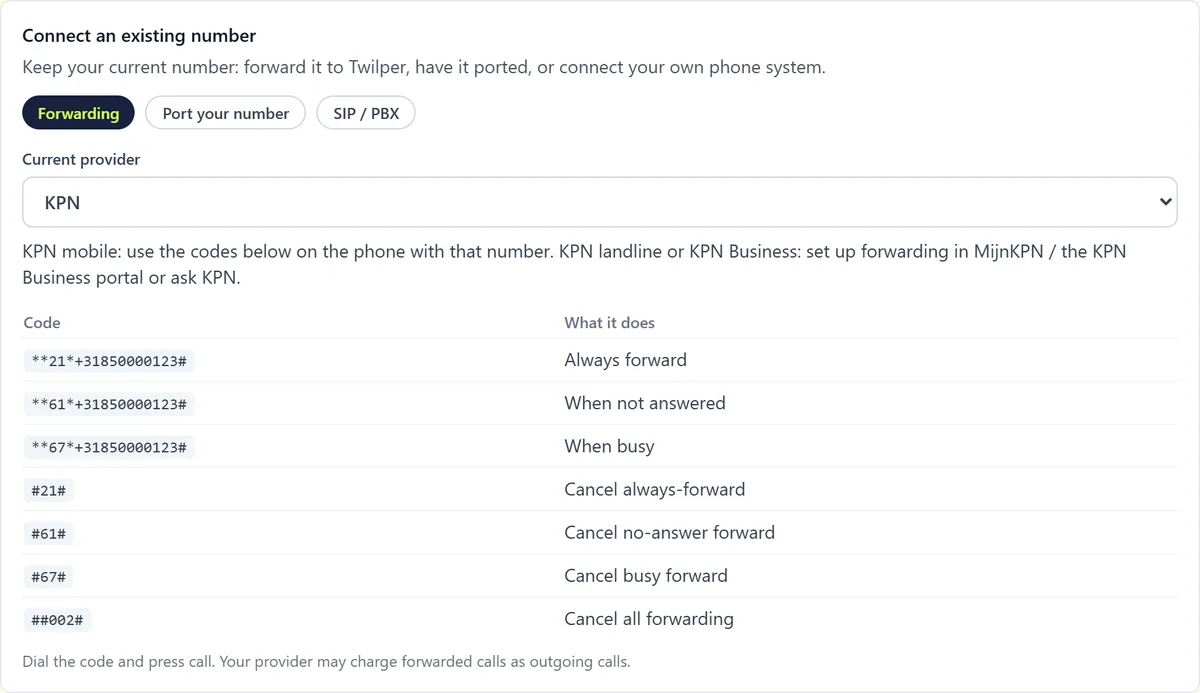
Under "Connect an existing number" choose between forwarding, porting and SIP / PBX.
Step 2: Forwarding
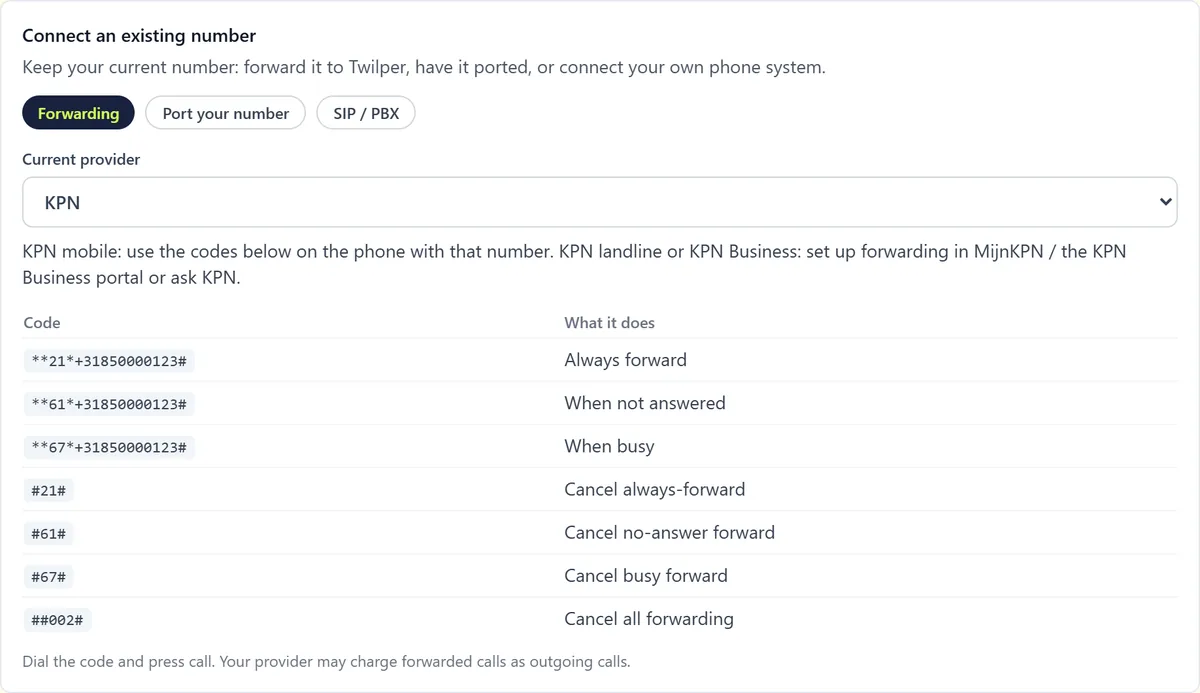
Choose your current provider. For mobile, use the codes: **21*number# always, **61*number# when not answered, **67*number# when busy; ##002# switches everything off. For landlines and business lines, set it up in your provider's portal.
Step 3: Porting
Fill in the form with current number, provider, contract holder and company registration number, optionally with a letter of authorisation and recent invoice (PDF, JPG or PNG up to 10 MB), and click "Send porting request". The Twilper team plans the switch with you.
Step 4: SIP / PBX
Have your own phone system? Click "Request a SIP connection"; we'll get in touch.
Voices
Under the voice of the menu and announcements and the voice of the AI assistant, choose the voice and play a preview. "Voices per language" sets a voice per language. A human-sounding premium voice is a paid add-on per minute.
Rules and settings
- Missed-call follow-up: if someone hung up before getting help, the conversation appears with "Call back" in the inbox and your team gets a notification.
- Call recording: callers hear a notice first. You set the retention period for the whole workspace.
- Country codes for outgoing calls decide which countries you may call from the app (default +31).
- A line's AI behaviour follows the workspace, or you give the line its own settings (see AI behaviour).
Testing
- Call your number from your own phone, inside and outside opening hours, and check that the call appears in the inbox.
Common problems
- Phone service not assigned to this plan: ask Twilper to put phone service on your licence. Your settings are kept.
- "Check these destinations": the call group has no numbers or app members yet. Add them or switch on the team's apps.
- Forwarding doesn't work with a VoIP provider: GSM codes usually don't work there; set it up in your provider's portal.
- Your provider may charge forwarded calls as outgoing calls.
Good to know
- You can prepare the whole call route before your number is active; calling only switches on when every step is done.