What it does
- Before the conversation: the AI knows the goal of the conversation and your greeting.
- During the conversation: the AI asks your questions one at a time, follows your scenarios and sticks to your rules.
- After the conversation: the collected answers are in the inbox, in the email to your team and in the lead.captured webhook.
- Fixed safety rules always come first: never ask for passwords or payment details, say it is an AI when asked, and never invent prices or appointments.
What you need
- Owner or admin rights.
- A filled knowledge base: the AI answers from your own knowledge.
Set up
Step 1: Start from a template
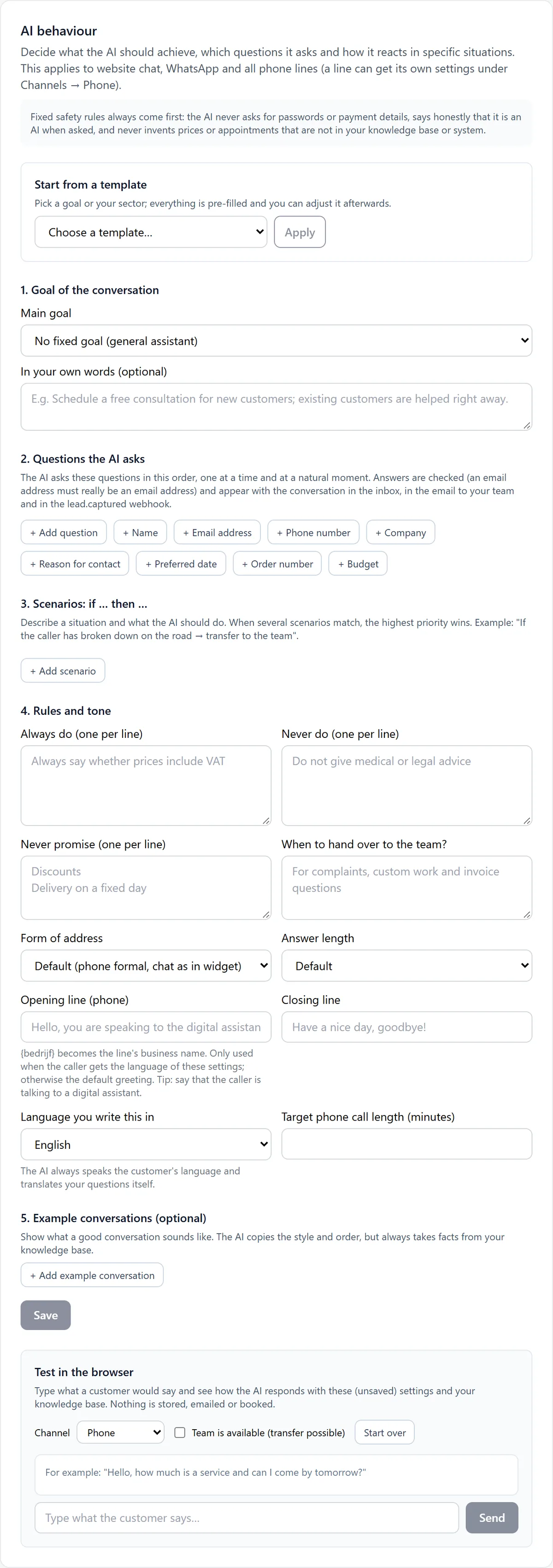
Under "Start from a template" choose a goal (such as customer service, booking appointments or orders) or a sector (such as hair salon, garage or web shop) and click "Apply". Note: this replaces what is already there.
Step 2: 1. Goal of the conversation
Choose the main goal and optionally describe it in your own words.
Step 3: 2. Questions the AI asks
Add the questions the AI must ask, such as name, email address or order number (up to 12). For each question choose the type of answer and whether it is required.
Step 4: 3. Scenarios: if … then …
Describe situations and what the AI does then: answer with a fixed text, ask a question, transfer, pass on by email, book an appointment, close politely or never talk about it. If several scenarios match, the highest priority wins.
Step 5: 4. Rules and tone
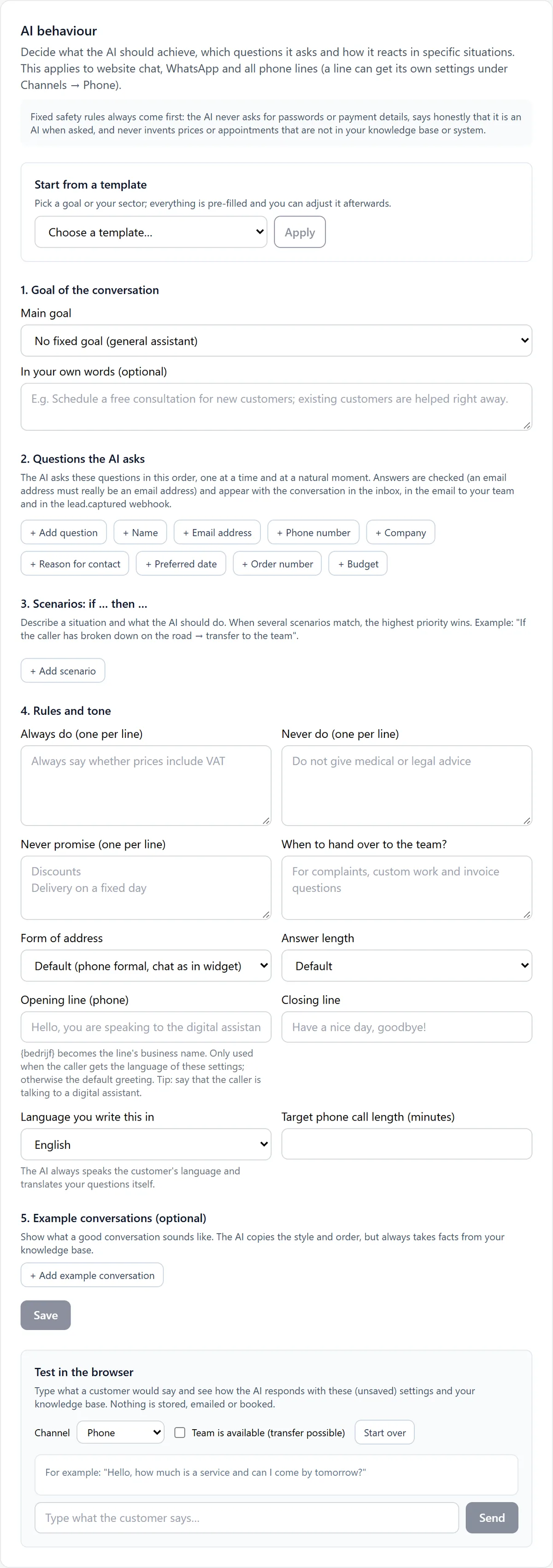
Fill in always do, never do, never promise and when to pass on to the team, choose the form of address and length of answers, and the phone greeting and closing line. Click "Save".
Own behaviour per phone line
Step 1: Choose for the line
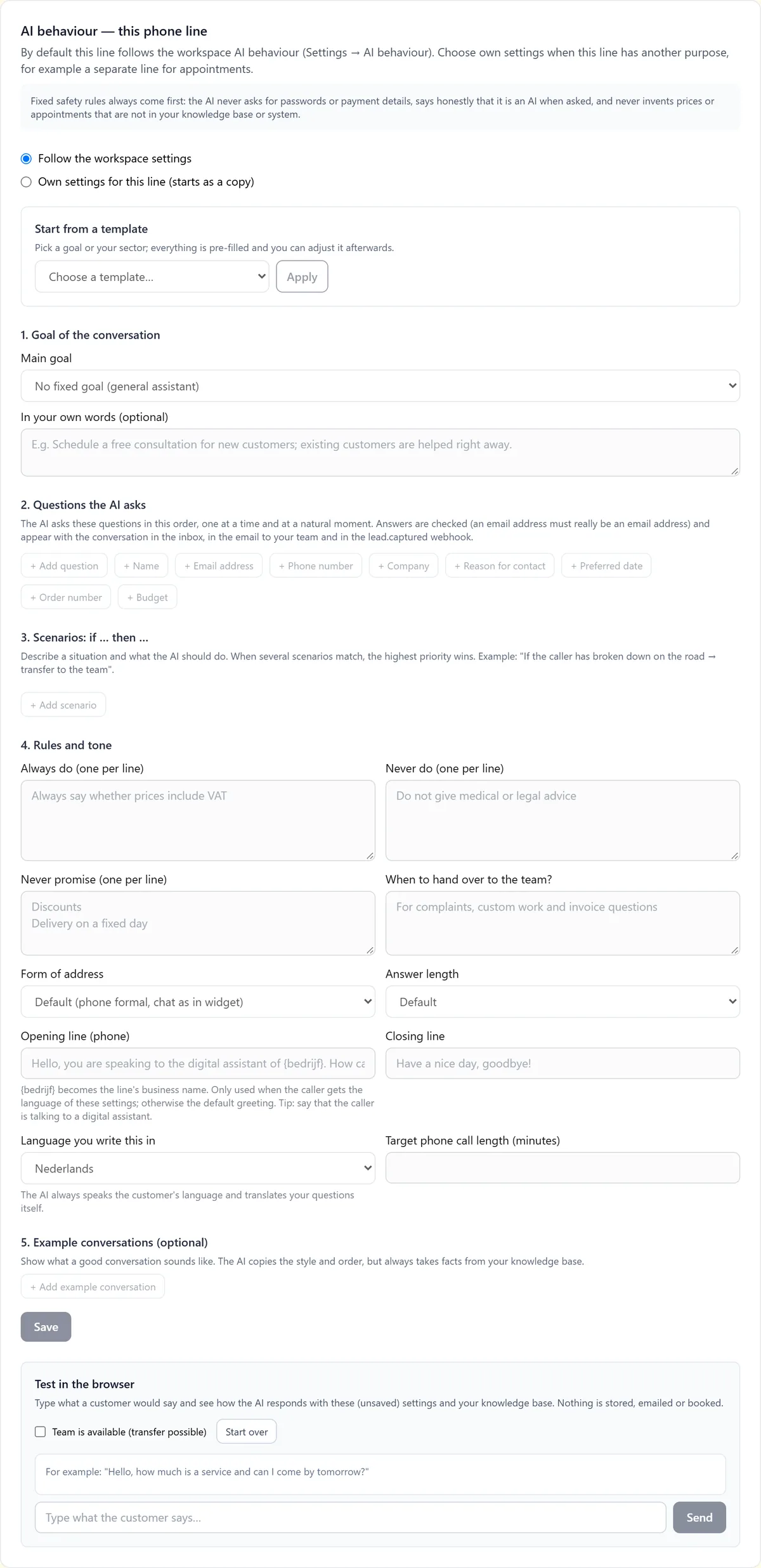
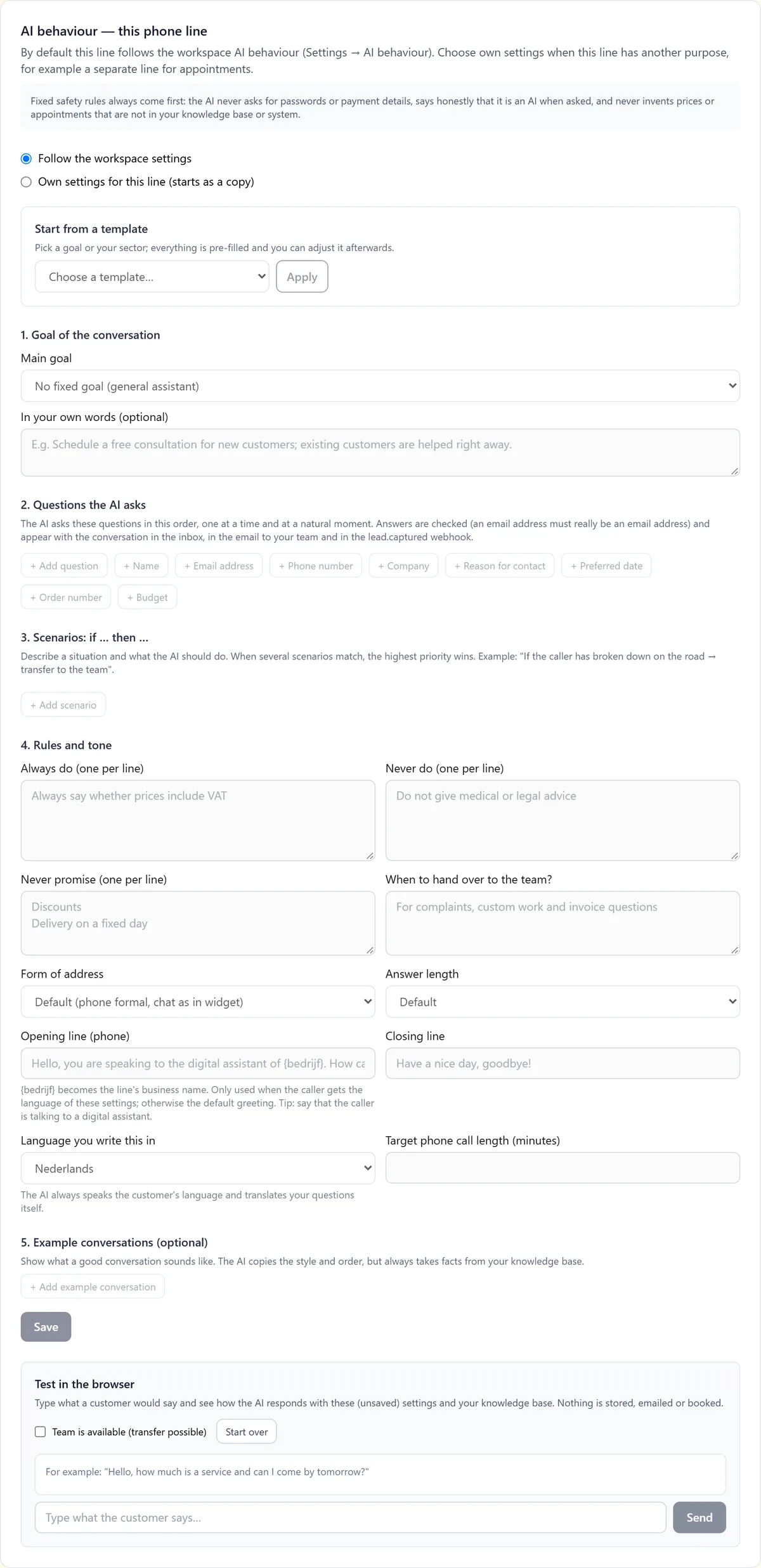
Go to "Channels" > "Phone", choose the line and scroll to the AI behaviour block for this phone line. Choose "Follow the workspace settings" or "Own settings for this line (starts as a copy)".
Rules and settings
- You write the settings in one language; the AI always speaks the customer's language.
- In the greeting, {bedrijf} is replaced by your business name.
- "5. Example conversations (optional)": up to 4 short examples help the AI follow your style, but it always takes facts from your knowledge base.
Testing
- Under "Test in the browser" choose a channel and type what a customer would say. The test also uses unsaved settings and stores, emails or books nothing.
- The collected answers are shown at the top, so you see whether the AI asks every question.
Common problems
- The test says AI processing is not on yet: the AI is not enabled for your workspace yet.
- The AI asks too many questions: make fewer questions required or move them into a scenario.
- The AI makes something up: add the right answer to your knowledge base and put it under never promise.
Good to know
- Change one thing at a time and test straight away in the browser; that way you see the effect.