What it does
- Before the conversation: the widget is on every page and the AI knows your current pages and products.
- During the conversation: with WooCommerce the AI can look up orders (after order number plus email address or postcode).
- After the conversation: conversations are in the shared inbox.
What you need
- A WordPress site on which you may install plugins.
- Your widget key (tc_live_…) from the dashboard.
Install
Step 1: Install from WordPress.org
In WordPress go to Plugins > Add New Plugin, search for "TwilperChat", click Install Now and then Activate. The plugin page is wordpress.org/plugins/twilperchat.
Step 2: Or upload the zip
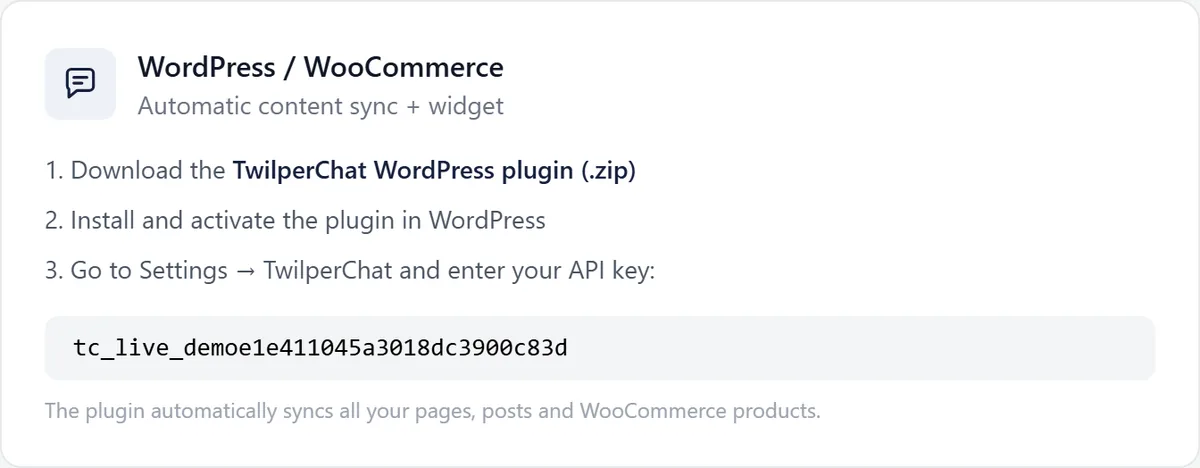
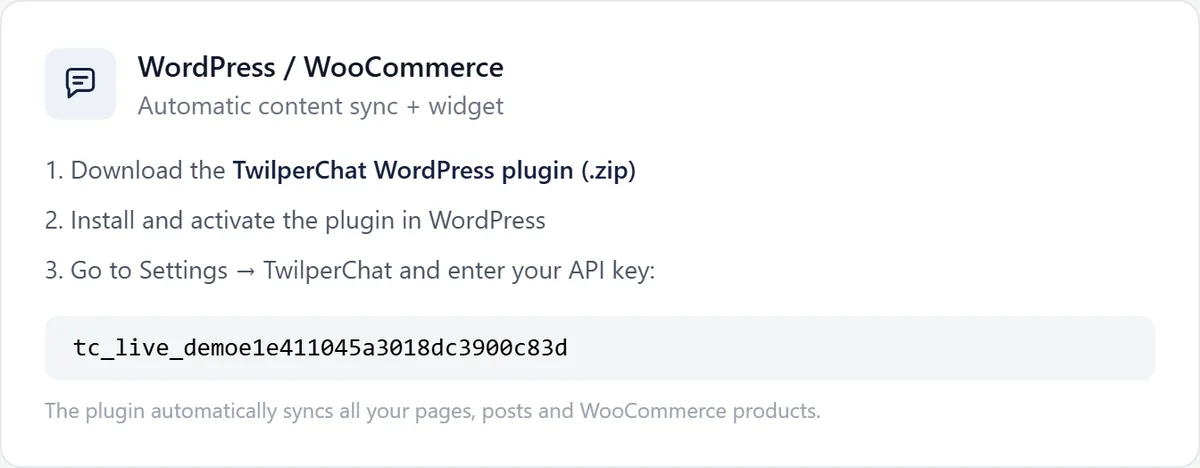
Can't install plugins from WordPress.org on your site? In Twilper go to "Integrations", choose "WordPress" at the top and download the TwilperChat WordPress plugin (.zip). In WordPress go to Plugins > Add New Plugin > Upload Plugin, choose the zip file, click Install Now and then Activate.
Step 3: Enter your key
In Twilper go to "Integrations" and choose "WordPress" at the top: step 3 of the block shows your widget key (starts with tc_live_). You only need the zip link in that block for the upload route. In WordPress go to Settings > TwilperChat, Connection tab, paste the key and click "Test connection".
Step 4: Switch on knowledge sync
On the Knowledge sync tab, switch sync on and click "Full resync now".
Step 5: Create a sync key (optional)
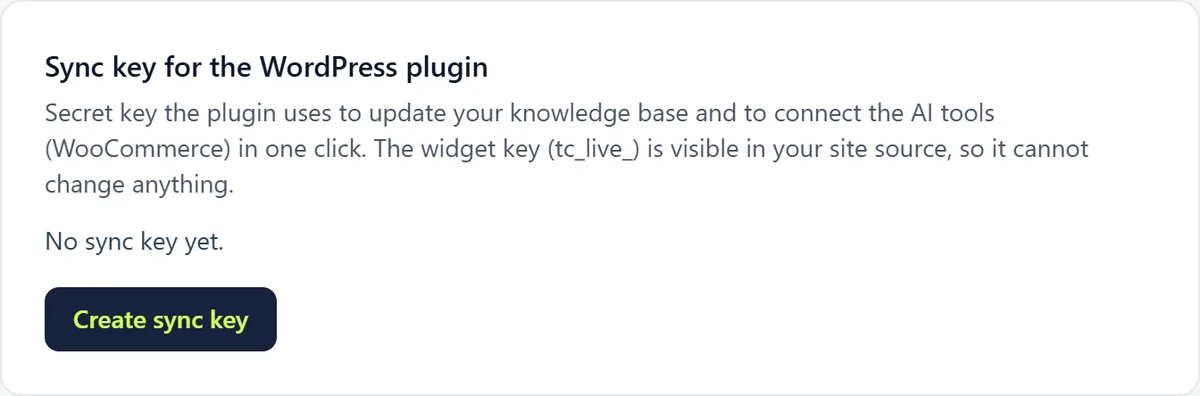
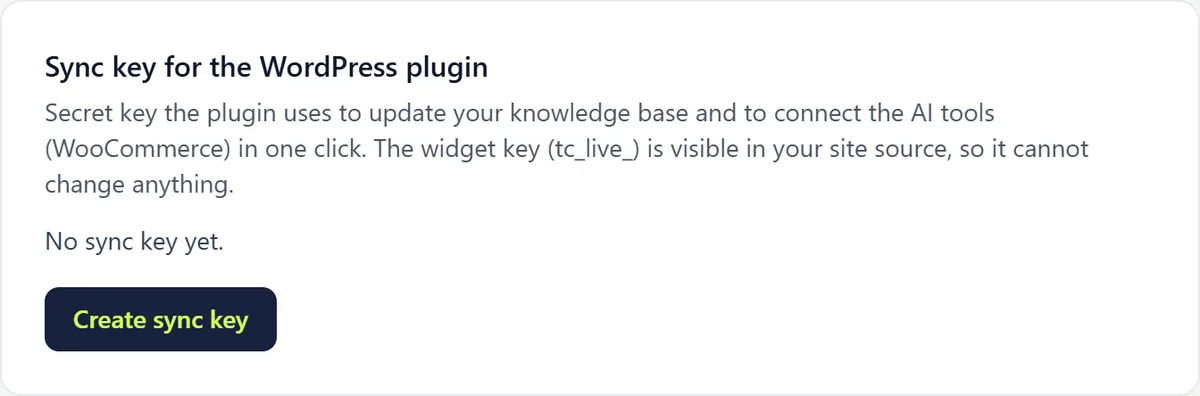
In Twilper, click "Create sync key" under "Sync key for the WordPress plugin" (starts with tc_sync_, shown once) and paste it on the Connection tab. Then use "Connect AI tools" to switch on the WooCommerce tools; your site must use https.
Rules and settings
- The widget key (tc_live_) is in your site's source code and therefore cannot change anything. The sync key is secret: don't share it.
- The plugin automatically syncs all your pages, posts and WooCommerce products.
- On the WooCommerce AI tools tab, switch on "Let customers ask for the status of their order" and choose what the customer must give next to the order number: email address, postcode, either, or both (strictest).
- After 5 wrong attempts an order number is locked for an hour. The AI gives status, items and tracking, never names or addresses.
Testing
- Open your site in a private window: the chat widget is in the bottom right. Ask a question about one of your pages.
Common problems
- No widget visible: clear your caching plugin's cache and check that the key was saved.
- Knowledge base not updating: check that the sync key is in the plugin and hasn't been replaced ("Rotate key" invalidates the old one).
- The order tools don't work: a security plugin blocks them. Allow /wp-json/twilperchat/v1/.
Good to know
- Wix or Webflow? Paste the widget code from "Integrations" > "Other website" before the </body> tag.