What it does
- Shopify (before the conversation): Twilper loads the caller's or visitor's latest orders through your installed Twilper app.
- WooCommerce (during the conversation): the AI looks up an order with order number plus email address or postcode, and gives status, dates, shipping method and tracking.
- Never addresses, phone numbers or amounts.
What you need
- Shopify: the Twilper app installed in your store (see below).
- WooCommerce: admin rights in WordPress and "pretty" permalinks (addresses with /wp-json/).
Set up Shopify
Step 1: Install the Twilper app
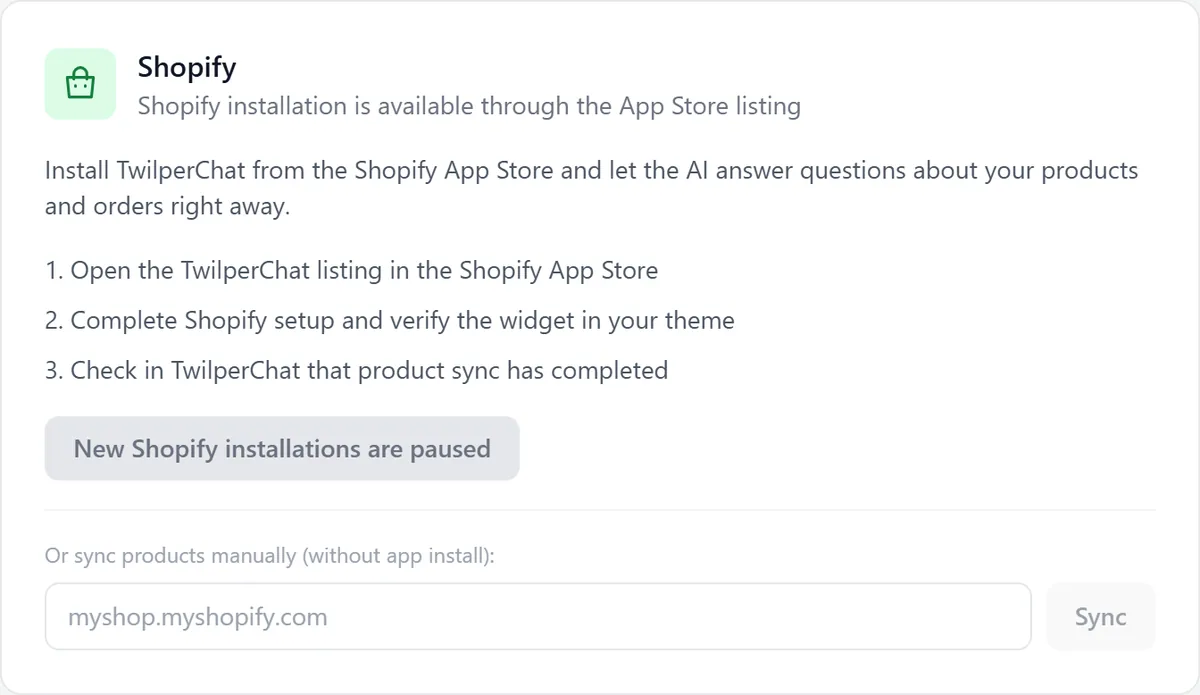
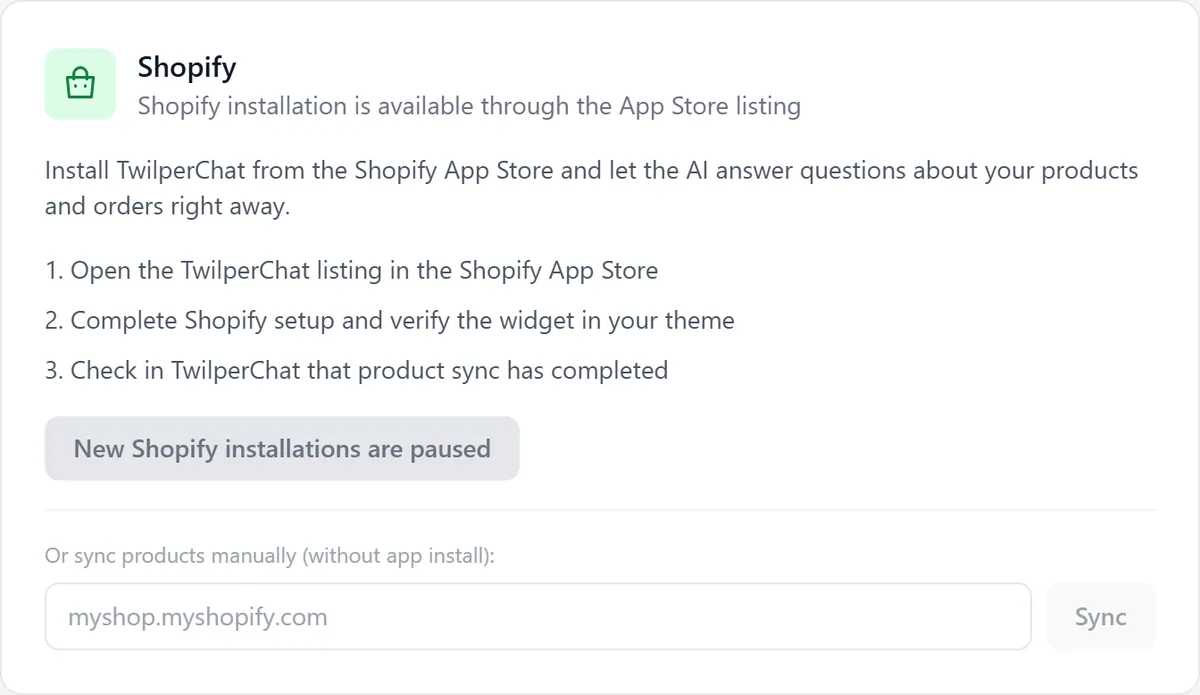
In Twilper go to "Integrations", choose "Shopify" at the top and follow the steps: open the TwilperChat listing in the Shopify App Store, complete the installation and check the widget in your theme.
Step 2: Switch on the orders integration
In the block "CRM, notifications and web shop", click "Set up" on Shopify and choose the button to use your Shopify store.


Recognition by email address works straight away. Recognition by phone number needs an extra permission in Shopify; until then a phone number finds nothing.
Set up WooCommerce
Step 1: Create a key in WordPress
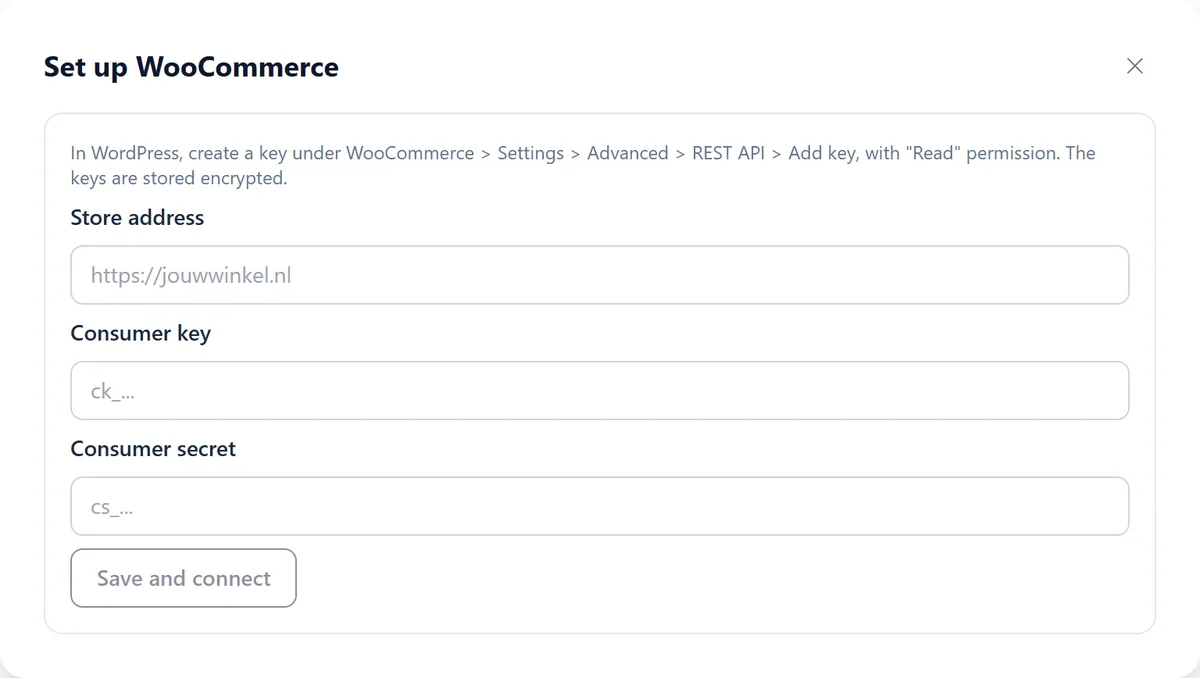
In WordPress go to WooCommerce > Settings > Advanced > REST API > Add key. Choose "Read" permissions and click Generate API key. Copy the consumer key (ck_…) and consumer secret (cs_…).
Step 2: Paste the details in Twilper
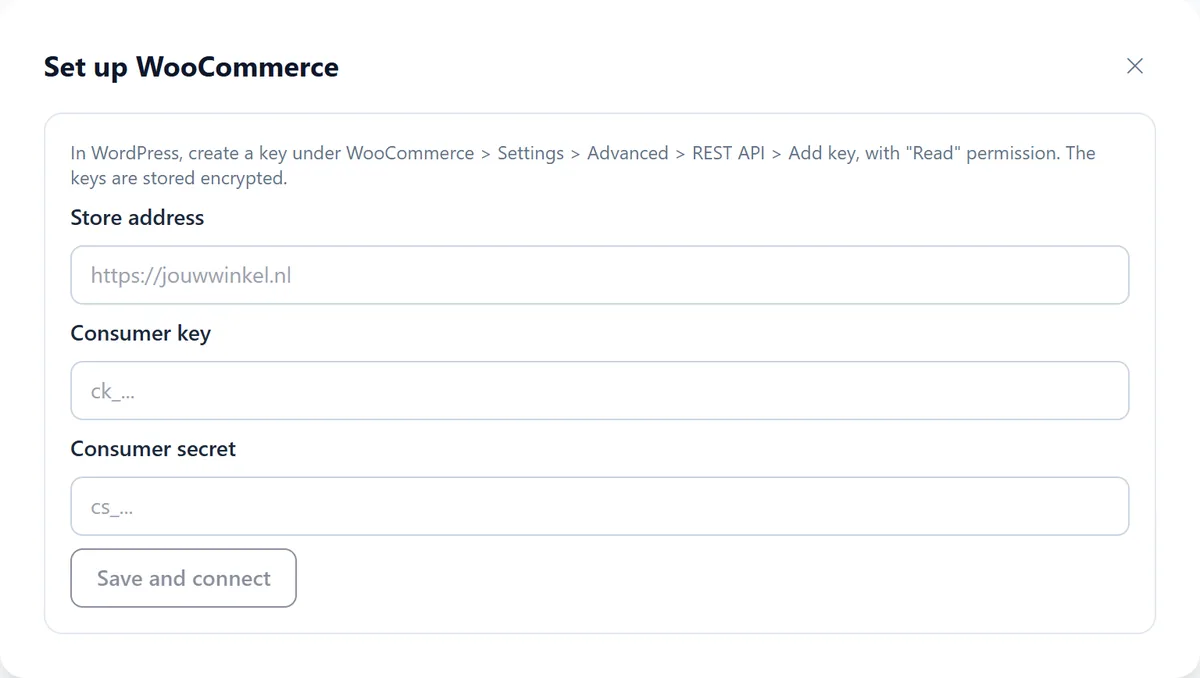
Click "Set up" on WooCommerce and fill in the store address, consumer key and consumer secret. Click "Save and connect". Twilper checks the key and stores everything encrypted.
Step 3: Choose what the AI may mention
"Mention items and quantities for a verified order (never address or amounts)" decides whether the AI also names the items.
Rules and settings
- The order number and the email address or postcode must match. A wrong detail and an unknown order number give the same answer, so nobody can guess order numbers.
- At most 5 lookups per conversation per hour and 300 per workspace per hour.
- The key only needs read permission.
Testing
- In the website chat, ask about a real test order with order number and email address, then with a wrong email address: the AI should find nothing.
Common problems
- WooCommerce says the key doesn't work: check that permalinks are set to "Post name" and that the key has "Read" permission.
- Your store uses custom order numbers through a plugin: Twilper also searches on that number.
- Shopify doesn't find callers: phone recognition is not enabled yet; email works.
Good to know
- Already using the WordPress plugin? You can also switch on WooCommerce with one click through the sync key; see the WordPress guide.