What it does
- Before the conversation: the AI knows your appointment types and working hours.
- During the conversation: the AI proposes free times, asks one thing at a time (name, email, optionally phone and reason) and only books after a clear "yes".
- After the conversation: the appointment is in your calendar, the customer gets a confirmation with a cancellation link and your team a notification.
What you need
- A Google or Microsoft 365 calendar, or a Cal.com or Calendly account.
- Calendly: a paid Calendly plan (booking through the API).
- A workspace in which the calendar is enabled. A greyed-out button means that calendar is not available yet.
Set up
Step 1: Choose your calendar
Go to "Integrations" and scroll to "Agenda: let the AI book appointments". Click the Google Calendar, Microsoft Outlook (365), Cal.com or Calendly button and sign in or paste your key.
Step 2: Choose the calendar and set up appointments
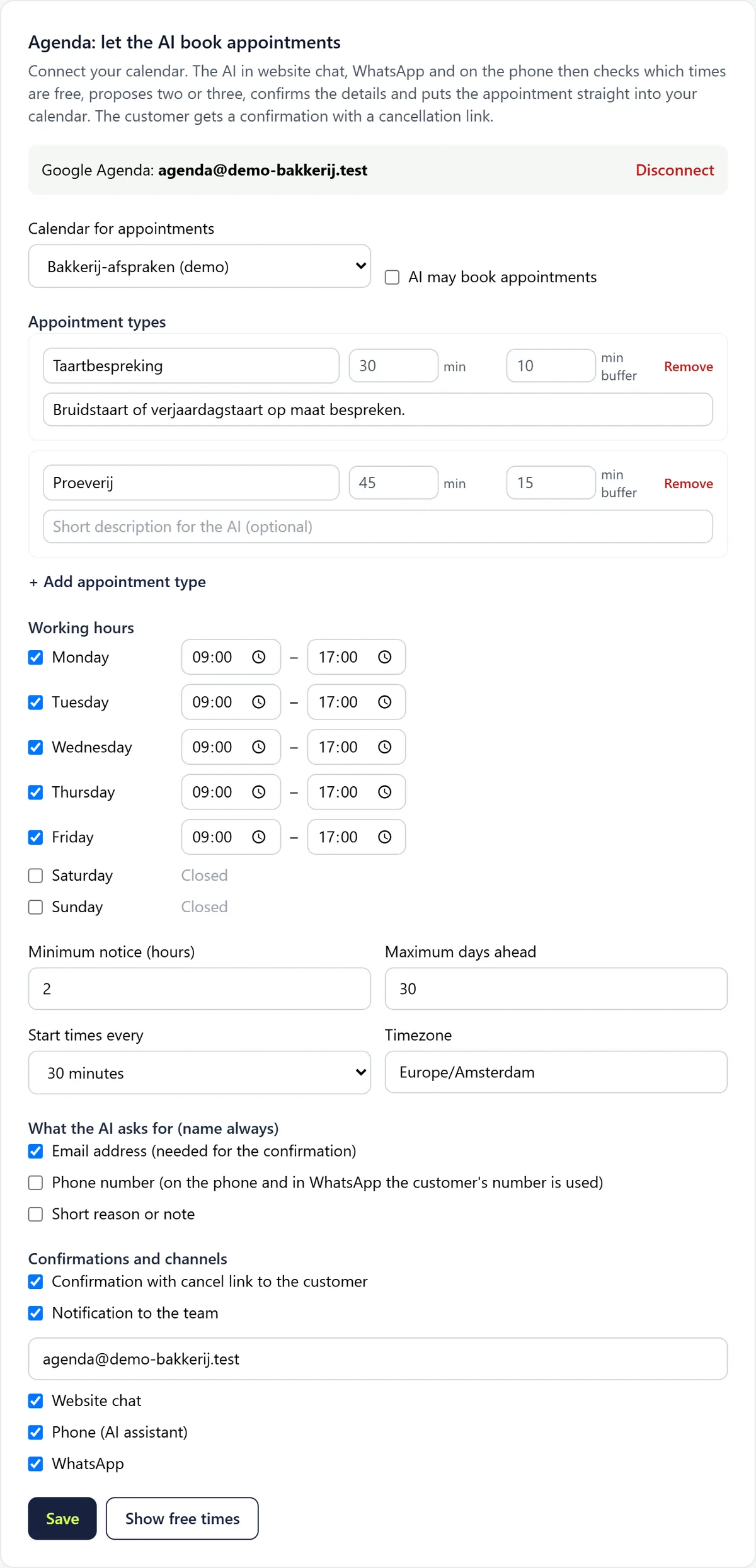
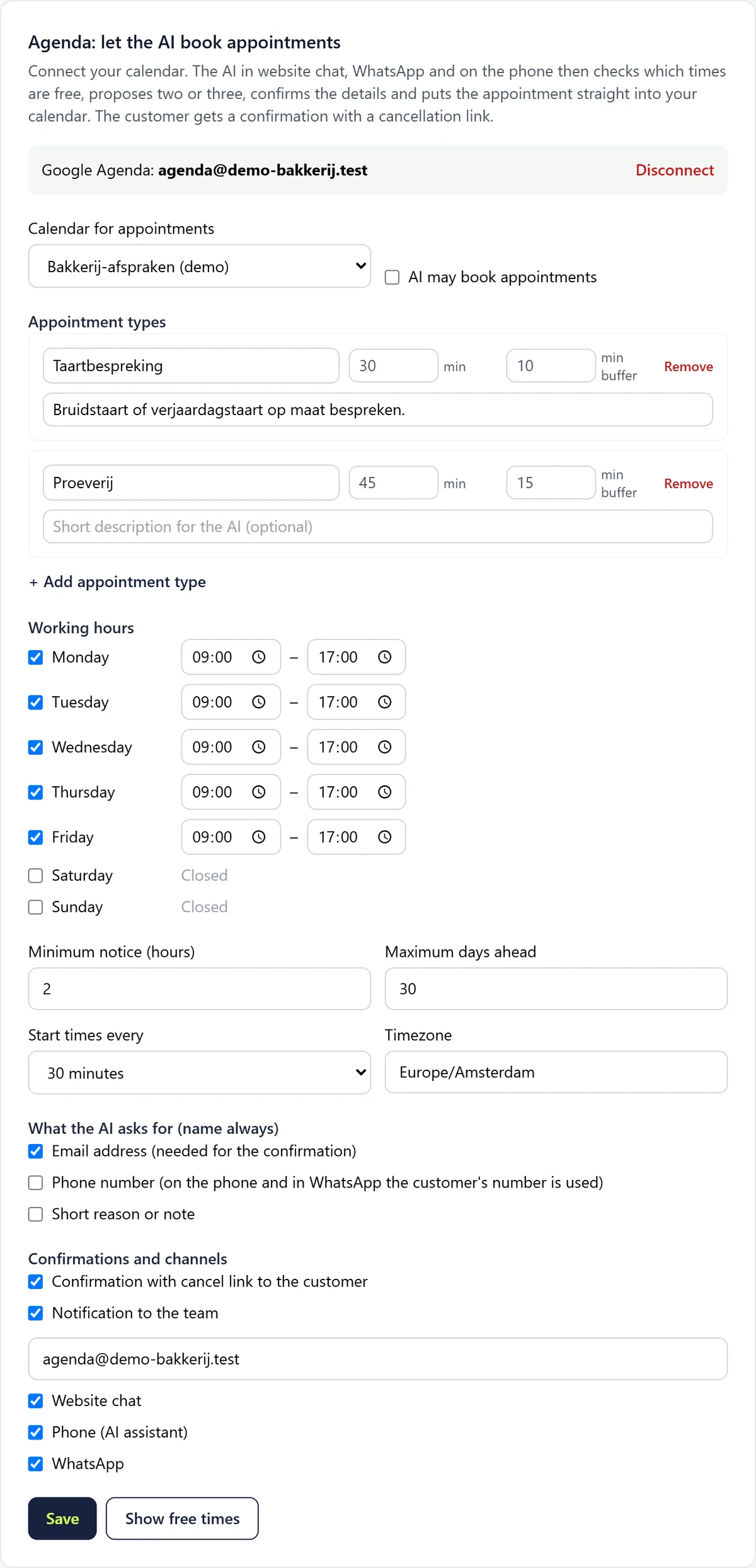
Under "Calendar for appointments" choose the right calendar. Under "Appointment types" create your types (name, duration, buffer before and after, short description for the AI) and set the "Working hours" per day.
Step 3: Choose what the AI asks and where
Under "What the AI asks for (name always)" choose the details you need, and under "Confirmations and channels" whether the customer gets a confirmation, whether your team gets a notification and in which channels the AI may book.
Step 4: Switch it on
Click "Save" and switch on "AI may book appointments".
Cal.com
In Cal.com, create an API key under Settings > Developer > API keys and paste it after clicking the Cal.com button. Then choose an event type as the calendar. Keep the duration in Twilper equal to the event type's and don't add extra required questions to the event type.
Calendly
In Calendly, create a personal access token under Integrations > API & Webhooks and paste it after clicking the Calendly button. Choose an event type. Booking through Calendly requires a paid Calendly plan. Availability then comes from Calendly.
Rules and settings
- "Minimum notice (hours)" and "Maximum days ahead" limit when bookings can be made; "Start times every" sets the grid (10 to 60 minutes).
- At most 3 appointments per conversation per day and 60 per workspace per day.
- Cancelling works through the link in the confirmation. Rescheduling means cancelling and booking again.
- With Cal.com and Calendly, availability and working hours come from that service, and it refuses double bookings.
Testing
- Click "Show free times": you see the times the AI would propose.
- Then ask for an appointment in the website chat and check that it appears in your calendar and under recent appointments booked by the AI.
Common problems
- Google says "Google hasn't verified this app": click Advanced and continue; this disappears once Google has approved the app.
- Microsoft asks for admin approval: have your IT admin approve Twilper.
- No free times found in the coming week: check working hours, minimum notice and whether your calendar is full.
- Access to your calendar expired or was revoked: connect again; your settings are kept.
Good to know
- Use the short description per appointment type to help the AI choose, for example "for custom wedding cakes".